Table of Contents
NinjaTrader 8 traders can now connect directly to TraderInsight.pro and have every trade and order sync to their journal automatically, in real time - no manual exports, no file imports, no gaps. The direct integration supports futures, forex, stocks, and more, across all your NinjaTrader 8 accounts simultaneously.
Note: The NinjaTrader 8 direct integration is currently in beta. If you run into anything unexpected, reach out via the in-app support modal and we'll get it sorted. If you uploaded data manually prior, reset existing trades to ensure stable imports (its better to have 1 source of truth instead of mixing import variants)
Why NinjaTrader 8 traders use TraderInsight.pro
NinjaTrader 8 is a serious execution platform. The charting, order flow tools, and backtesting capabilities are genuinely powerful - but when it comes to reviewing your actual trading behavior and understanding why your P&L looks the way it does, the platform leaves a lot on the table.
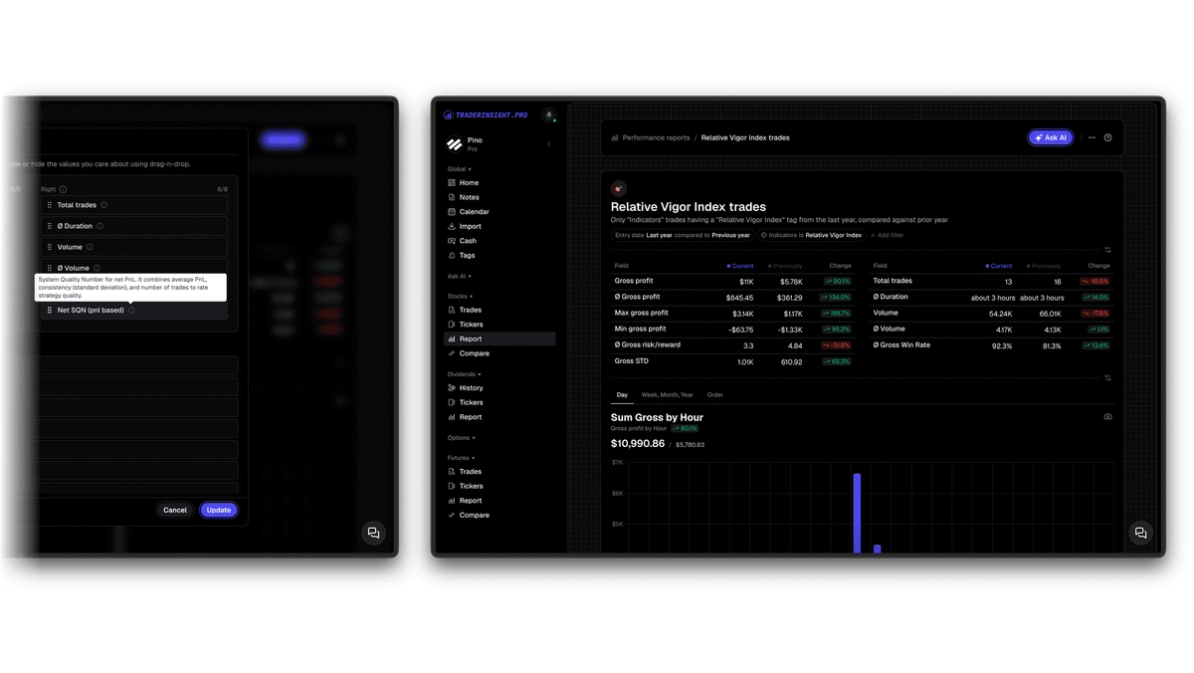
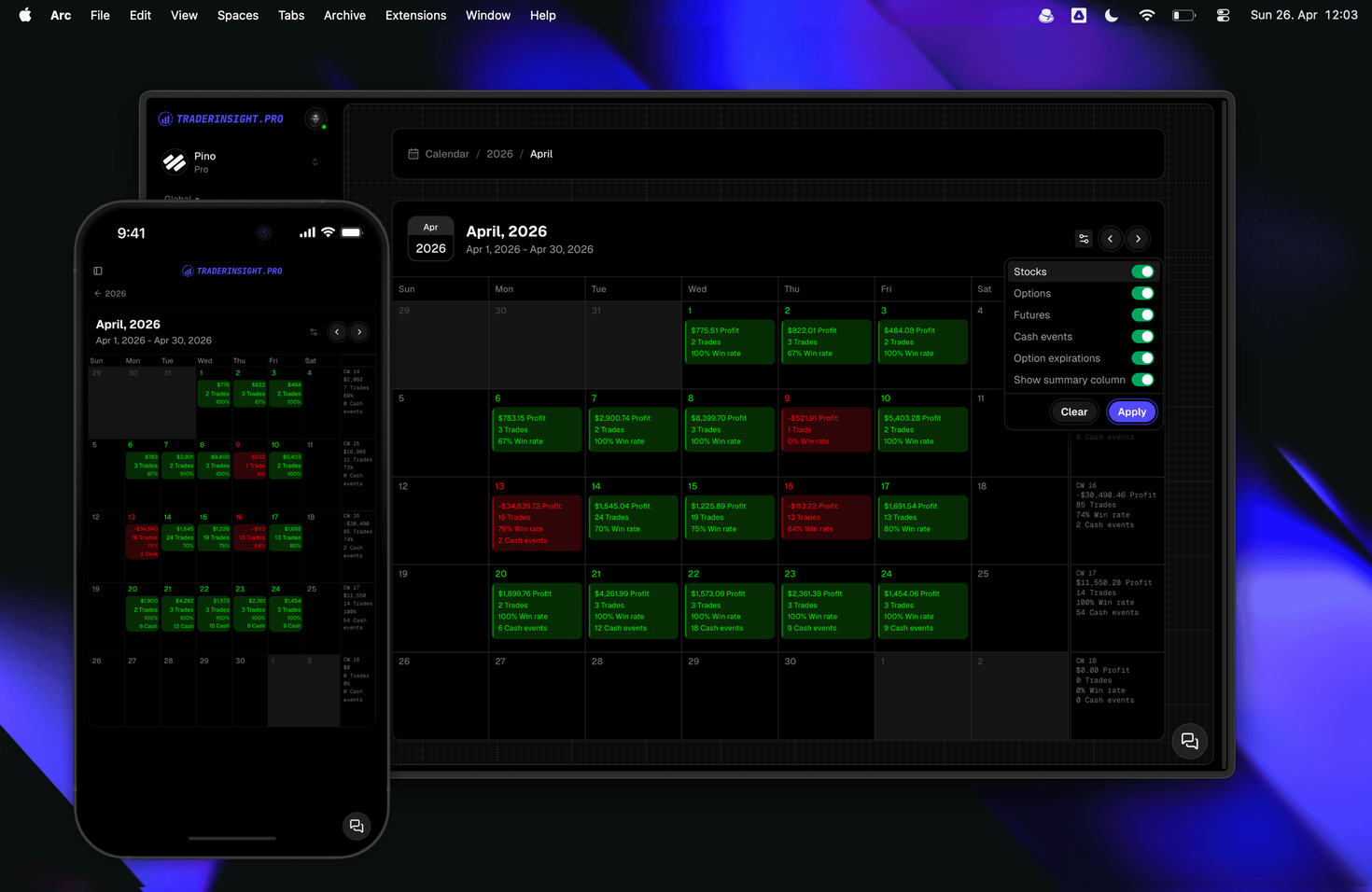
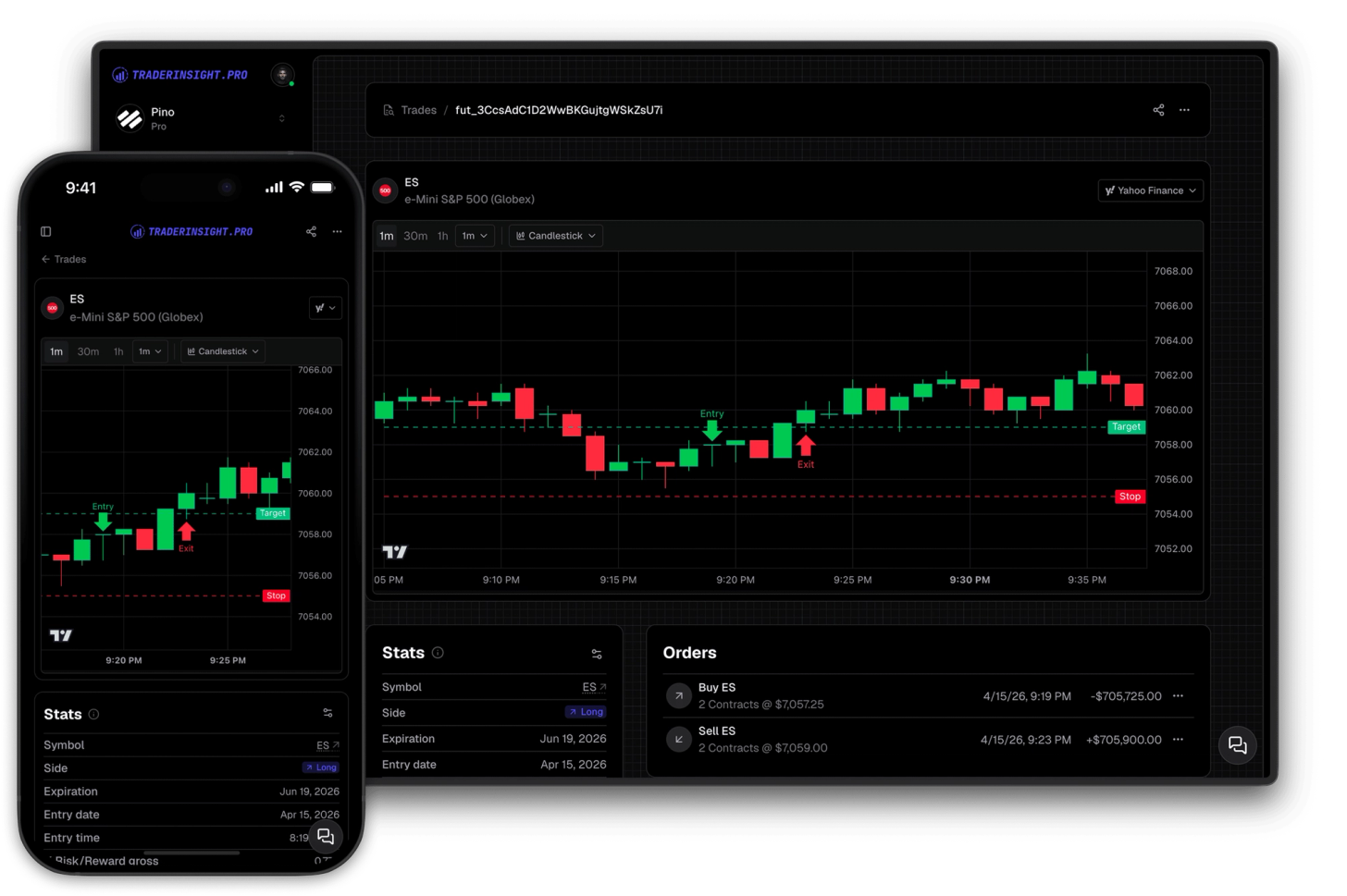
TraderInsight.pro fills that gap. Once your trades are live in your journal, you can run performance reports that break down your results by strategy, session, instrument, day of week, and more. You can tag every trade with your own custom tags, attach notes to individual executions, and use the AI analysis to ask plain-English questions about your trading history. The trading calendar gives you an instant visual read of which days and sessions are working and which aren't.
The direct integration means all of this happens without you lifting a finger after the initial setup.
How to connect NinjaTrader 8 to TraderInsight.pro
The connection is set up once. After that, your trades sync automatically every time NinjaTrader 8 is running.
Step 1 - Open your Journal Settings
Go to your journal settings and navigate to Data Sources. Click on NinjaTrader, then click Connect. This will generate your Journal ID, API Key, and API Secret - keep this tab open, you'll need these in later.
Step 2 - Download the TraderInsightProSync AddOn
From the same screen, download the official TraderInsightProSync AddOn. This is the NinjaScript component that runs inside NinjaTrader 8 and handles the sync.
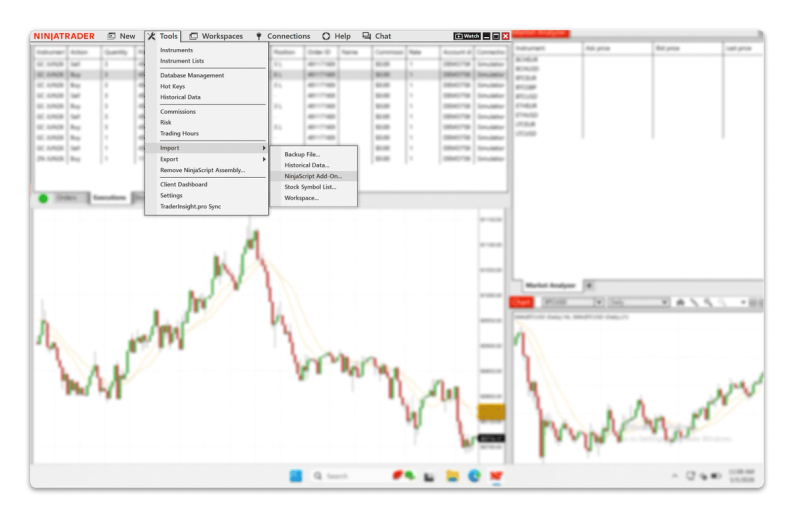
Step 3 - Import the AddOn into NinjaTrader 8
Open NinjaTrader 8 and go to Tools → Import → NinjaScript. Select the zip file you downloaded and complete the import.
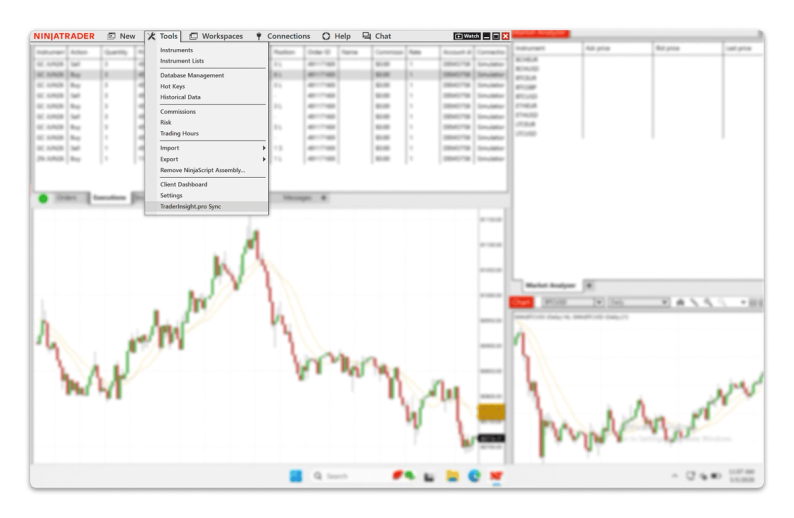
Step 4 - Open the Sync configuration
Once imported, go to Tools and scroll to the bottom of the menu. Click on TraderInsight.pro Sync to open the configuration modal.
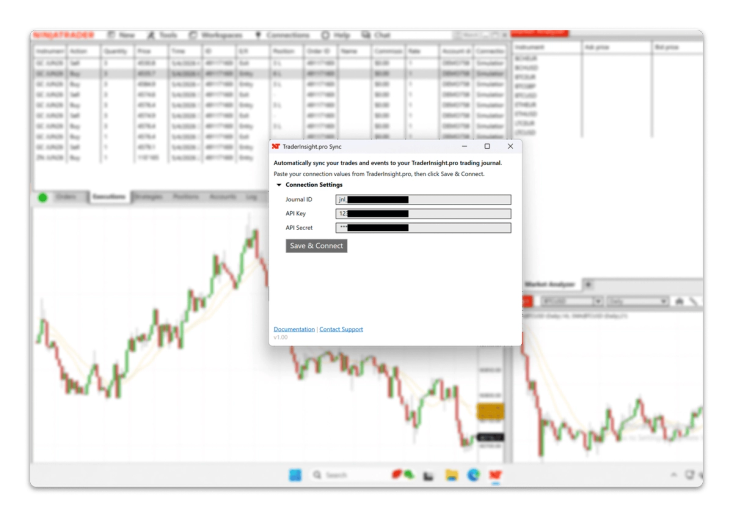
Step 5 - Enter your credentials and connect
Enter the Journal ID, API Key, and API Secret from TraderInsight.pro into the config modal and click Save & Connect.
The AddOn will test the connection immediately. Once confirmed, the status will update to Connected. If the test fails, double-check that the credentials were copied correctly. If you're still stuck, use the in-app support modal in the bottom-right corner of TraderInsight.pro and we'll help you get connected.
How the real-time sync works
How often does the sync run?
Once connected, the AddOn syncs your (past and all new) trades and orders to your TraderInsight.pro journal every few seconds in a highly performant, low-overhead process. There is no delay you would notice in practice - positions you close in NinjaTrader 8 appear in your journal almost immediately.
Only filled orders are synced and you would need to reload your reports for the new data to appear.
What happens when I open and close NinjaTrader 8?
The sync is tied to the NinjaTrader 8 application lifecycle. When you open NT8, the sync starts automatically. When you close NT8, the sync pauses and resumes the next time you open the application. There is nothing to manually start or stop.
Can I sync multiple NinjaTrader 8 accounts?
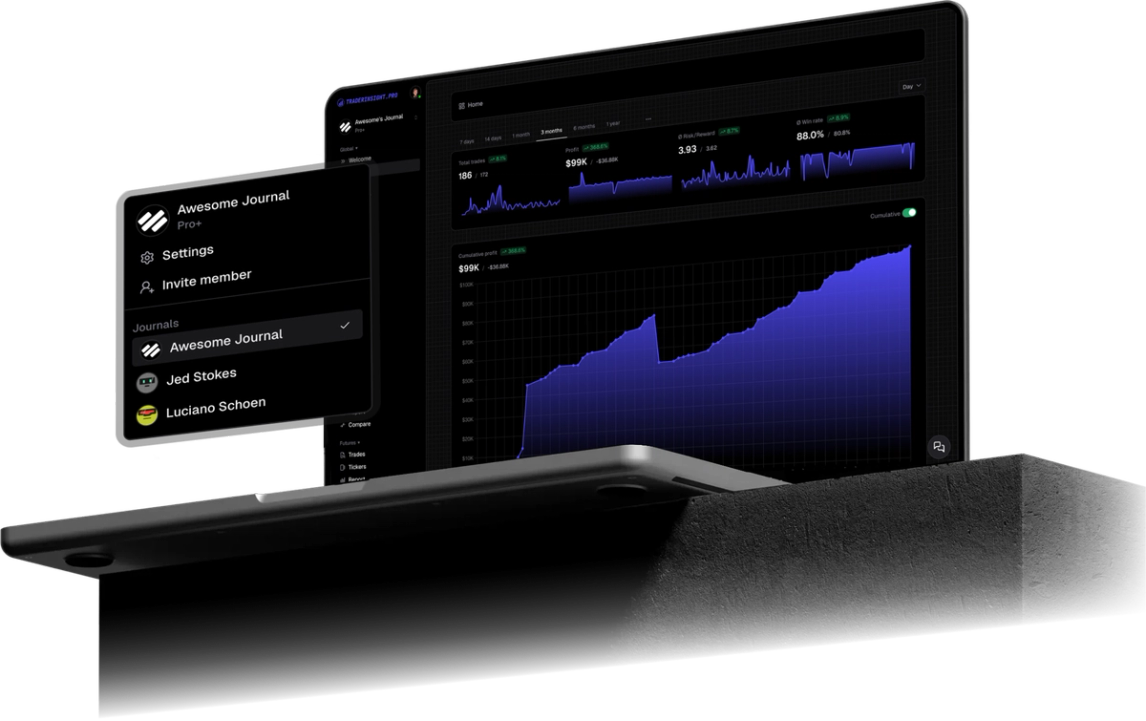
Yes. The TraderInsightProSync AddOn syncs all your NinjaTrader 8 accounts to your journal simultaneously. This means your demo account and live account are both tracked in one place - you can journal your practice trades and your real trades side by side and run comparison reports between them.
Where do synced trades appear in TraderInsight.pro?
Synced trades appear on your Import page as entries tagged with ApiImport, with a direct link back to your NinjaTrader 8 connection. You can filter and manage them the same way you would any other imported data.
Can I have more than one NinjaTrader 8 connection?
Each journal supports one NinjaTrader 8 connection. If you run multiple journals on TraderInsight.pro, you can connect a separate NinjaTrader 8 instance to each.
How to import your historical NinjaTrader 8 trades
Historic trade data is not imported by the AddOn due to NinjaTrader 8 platform limitations. For trades that occurred before you connected, you will need to perform a one-time manual import of your legacy trade history. We made it work so that historic data is automatically imported when its possible. Once the historical data is in your journal, all new activity is handled by the live sync going forward automatically.
How to use your NinjaTrader 8 data to improve
How to identify which of your NT8 strategies are actually profitable
Most NinjaTrader 8 traders run more than one setup. The tags feature lets you label each trade with your strategy name, and the performance reports will break down your P&L, win rate, and average R by tag. You stop guessing which setup is carrying you and start managing your trading like a business.
How to find the sessions and instruments where you consistently lose money
The trading calendar gives you a heat-map view of your performance across days, weeks, and months. Filter it by instrument or account to isolate the specific conditions where your results break down. A lot of futures and forex traders find meaningful patterns here within the first week of having real data.
How to ask AI questions about your NinjaTrader 8 performance
Once your trades are live in TraderInsight.pro, the AI analysis can answer plain-English questions about your data. Ask things like "Which instrument has my highest win rate?" or "How do my morning trades compare to my afternoon trades?" - and get an immediate, data-backed answer without building a single report manually.
How to share your NinjaTrader 8 journal with a mentor or prop desk
The sharing features and journal members tools let you give read or review access to a coach, mentor, or risk manager. Because the sync is live, whoever you share with is looking at your current data, not a snapshot you exported last week.
Access your NinjaTrader 8 journal on any device
TraderInsight.pro is fully cross-platform. Every report, dashboard, and trade detail is available on the mobile app with 100% feature parity - not a lite version. Review your NinjaTrader 8 performance from your phone between sessions without losing access to any feature.
Questions and feedback
If you run into any issues during setup or have ideas for how to improve the integration, reach out via the in-app support modal in the bottom-right corner of TraderInsight.pro. This integration is in beta and your feedback directly shapes what gets built next.
You can also request features or vote for additional broker integrations from the links below.
Frequently Asked Questions
Does TraderInsight.pro support NinjaTrader 8?
Yes. TraderInsight.pro has a direct, real-time integration with NinjaTrader 8 via a native NinjaScript AddOn. After a one-time setup, your trades sync automatically every time NT8 is running.
How do I connect NinjaTrader 8 to TraderInsight.pro?
Go to Journal Settings → Data Sources → NinjaTrader → Connect in TraderInsight.pro. Download the TraderInsightProSync AddOn, import it into NinjaTrader 8 via Tools → Import → NinjaScript, then enter your Journal ID, API Key, and API Secret into the Sync config modal and click Save & Connect.
Does the NinjaTrader 8 integration sync in real time?
Yes. Once connected, the AddOn syncs trades and orders every few seconds. Positions you close in NinjaTrader 8 appear in your TraderInsight.pro journal almost immediately.
You still need to reload your pages for the data to appear.
Can I sync my demo and live NinjaTrader 8 accounts at the same time?
Yes. The TraderInsightProSync AddOn syncs all your NinjaTrader 8 accounts to your journal simultaneously, so demo and live trades are both tracked and can be reviewed side by side using comparison reports.
Will my historical NinjaTrader 8 trades be imported automatically?
Yes. Historic data is imported automatically. In case it does not work for you out of the box, then simply do a one-time manual import of your legacy trades. All new activity after connecting is handled automatically by the live sync.
How many NinjaTrader 8 connections can I have per journal?
Each journal supports one NinjaTrader 8 connection. If you use multiple TraderInsight.pro journals, you can connect a separate NT8 instance to each.
Does TraderInsight.pro support NinjaTrader 8 futures trading?
Yes. Futures are fully supported, including the trades, orders, and P&L data that NinjaTrader 8 generates across your accounts. Futures is one of the most commonly journaled asset classes on TraderInsight.pro.
Can I use TraderInsight.pro on mobile with my NinjaTrader 8 data?
Yes. The TraderInsight.pro mobile app has full feature parity with the desktop version. Every report, dashboard, and trade detail is available on your phone, and because the sync is live, the data is always current.
Is the NinjaTrader 8 integration free to use?
The integration is available as part of your TraderInsight.pro plan. See pricing for details on what's included at each tier.
Changelog
💡
To upgrade, first remove the existing Addon (Tools > Remove NinjaScript Assembly, then select the existing AddOn version and click on Remove); Once done, install the latest AddOn version and import through Tools > Import > NinjaScript)
Version 1.50 - May 27, 2026
Added
- Backfills are now disabled by default due to NinjaTrader constrains (their instrument IDs used to map executions are not reliable nor unique and using them for backfills can lead to trades from ABC to be processed as trades from DEF; there is sadly no reliable way around that. To ensure data integrity and accuracy backfills are now disabled by default and can be enabled manually by opening the local
trader_insight_pro_sync.txtfile and appendingIsBackfillEnabled=true; once added restart NinjaTrader for the changes to take effect)
Changed
- Backfill UI tab is hidden unless
IsBackfillEnabled=true.
Version 1.41 - May 19, 2026
Fixed
- Account lists in settings and manual backfill now show your real account names (for example
DEMO7587786 (3)) instead of complex technical labels.
Version 1.40 - May 15, 2026
New
- Choose which accounts to sync - sync all accounts or only the ones you select.
- Manual backfill tab - run a historical sync on demand whenever you need it.
- Upgrade reminder - after you connect, you’ll be notified if a newer add-on version is available, with a link to download it to easily stay up-to-date.
- Clearer sync status - the add-on shows whether it’s starting up, loading history, syncing live trades, or paused.
- Richer trade data - more detail is sent to your journal when NinjaTrader provides it (entries/exits, position size, fees, lot size, and related fields) for even better context.
- Smarter startup - live syncing only begins after you’re connected and the initial history load has finished.
- Better error messages - clearer alerts when there are login problems, too many requests, or temporary server issues, with guidance on what to do next.
- Support diagnostics - when our team needs logs, you can upload a diagnostic package from the add-on (when prompted).
Improved
- Settings are organized into Connection, Manual Backfill, and About tabs.
- When you connect an account that’s on your sync list, history for that account can backfill automatically.
- Overall reliability and account handling improvements during sync.
Fixed
- Improved processing and handling of NinjaTrader glitches and edge-cases to ensure high-quality imports
Version 1.0 - May 6, 2026
New
- Live trade realtime sync - trade executions are sent to your TraderInsight.pro journal as you trade.
- Historical backfill - past trades from your NinjaTrader app can be imported into your journal with the click of a button.
- Automatic pause on problems - syncing pauses during rate limits or server issues and resumes when things are healthy again.
- Settings window - connect your journal with your API credentials from TraderInsight.pro in less then 2 minutes